Purpose: You will be setting up a local web server on your machine. It's important to get comfortable with this sort of thing, because all web servers are similar, even though we will chiefly use this one to test your webpages locally before deploying to the webhost. XAMPP is a general purpose webserver optimized for PHP and Perl, not Python, but using it will give you insight into what is happening on your webhost, which also uses a general purpose webserver (LiteSpeed). It is fairly common to set up Python applications on general purpose servers like this, even though special-purpose servers like Gunicorn and Uvicorn are better optimized for them.
Download XAMPP
Windows: Download the most recent version of XAMPP from apachefriends.org.
Mac: Download the most recent version of XAMPP from apachefriends.org. If needed, change the file extension from .bz to .zip before unzipping and installing. Click "Download"
Install XAMPP
Install with all the defaults. We will have one assignment that uses PHP and Perl briefly, so include those, even though most of our assignments do not use them. Other notes:
Turn off VMWare, Skype, and other conflicting services like Windows "World Wide Web Publishing Service" that will block the ports you need for XaMPP.
Click Yes to security warnings
On Windows, install to C:\xampp
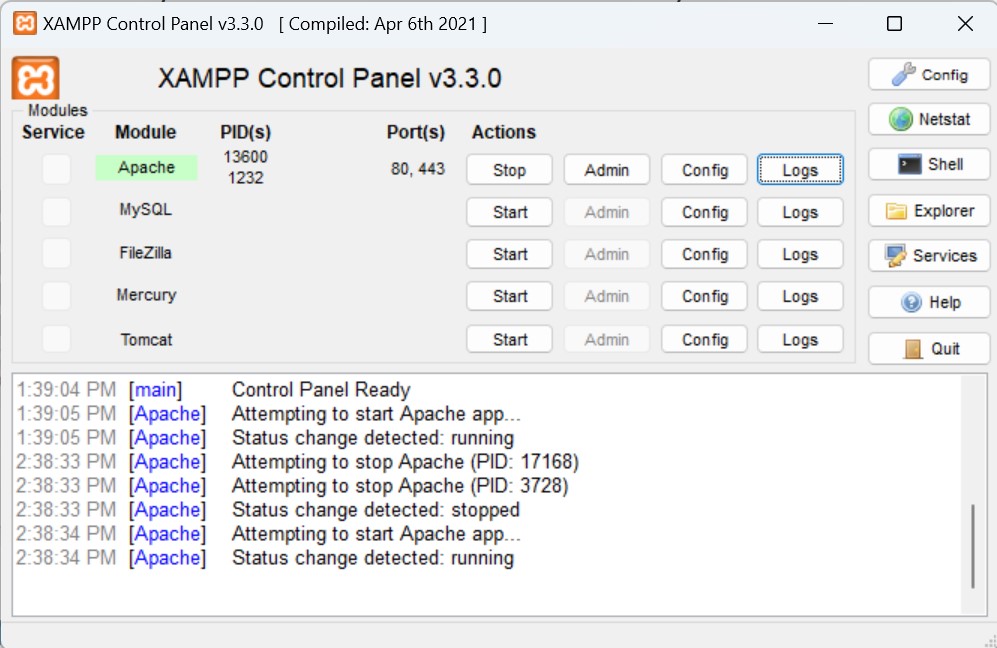
When you run it, the XAMPP control panel should look like this:
Test XAMPP
Make sure Apache says it is listening on port 80 (for http) and port 443 (for https).
Open a browser and enter
or
in the URL bar.
It should pull up a default pre-installed page.
Clean Out the Content
Find the Document Root directory, usually in the following place
This is where the webserver looks first when you go to "localhost" on your browser.
You don't need any of the default content in the document root. You may run it for test purposes, but then delete it or move it somewhere.
Start Your Project to Test the Content
Start your project by creating some HTML files with a simple nav and content, then open a browser and enter in the URL bar. Unless you prefer to use your own page, you may download the sample webpage displayed below. Unzip it into the document root folder (htdocs) unless you prefer to put it in a subfolder.